How to Use the Kimi K2.5 Model 2026
Table of Contents
How to Use the Kimi K2.5 Model: Complete Guide to the New Multimodal AI Model
In the world of artificial intelligence, tools are no longer just about generating text—they are becoming full collaborators that can see, reason, create, and organize complex tasks. The Kimi K2.5 Model is one such advancement, designed to combine language, vision, and intelligent automation into a single, unified experience. This guide will help you use Kimi effectively if you’re new to it or unsure how to start.
What Is Kimi K2.5?
Before jumping into how to use it, it helps to understand what this model is.
At its core, Kimi K2.5 is an advanced AI model that can handle text, images, and videos together—often in the same task. It goes beyond simple question-answering, turning visual designs into real working code, drafting polished documents, automating research workflows, and even coordinating multiple sub-agents to execute tasks in parallel.
This means you can ask Kimi to do complex work that once would have taken hours of manual effort, and it can often deliver in minutes.
Choosing Where to Use Kimi
There are several ways you can interact with Kimi K2.5, depending on your needs:
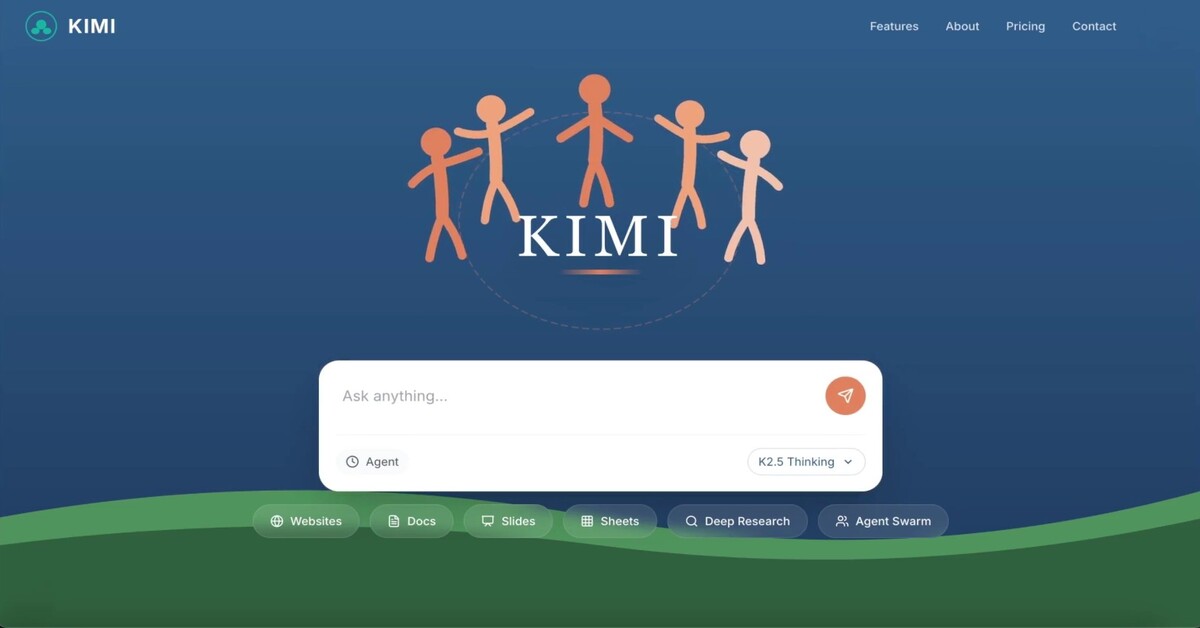
- Kimi.com (Web Interface)—A browser-based platform where you can dive right in, type prompts, upload files, and get immediate results.
- Kimi App—Ideal for working on mobile or tablet, giving you full access to Kimi’s features on the go.
- API Access—If you build apps or systems that need AI inside them, you can call Kimi through its API.
- Kimi Code—A developer-centric environment that integrates with tools like IDEs and lets you work visually and textually with your code.
Whatever route you choose, the first experience is often similar: describe what you want clearly, and let Kimi go to work.
Step 1: Tell Kimi What You Want
Start with a clear description of your task. Think of this like explaining a project to a colleague.
For example, you might say:
- “Create a responsive landing page from this screenshot.”
- “Summarize this research document into a concise one-page brief.”
- “Generate a spreadsheet with formulas and charts from this data file.”
You can also upload supporting images or videos—especially helpful when your task is visual, like designing UI or debugging software based on screenshots.
The key is to be detailed about your goals, constraints, and context. The richer your description, the better and more accurate the output.
Step 2: Pick the Right Mode
Kimi offers different ways of processing your request, and choosing the right one makes a big difference:
Instant Mode
- Best for fast, simple answers when you don’t need deep analysis. If you want a quick response or a brief explanation, go with this.
Thinking Mode
- Use this when your task requires thought—like solving complex problems, planning workflows, or generating creative content. Kimi spends more time reasoning before it answers.
Agent Mode
- This mode is ideal when you have a multi-step job, like producing structured outputs (documents, websites, reports). Kimi organizes tasks and guides them from start to finish.
Agent Swarm (Beta)
- For very large projects or research tasks that involve layers of complexity, Agent Swarm kicks in. This feature deploys multiple intelligent helpers that handle separate parts of the job in parallel, speeding up the process significantly and managing large workloads efficiently.
Step 3: Let Kimi Work Its Magic
Once you’ve described the task and chosen a mode, Kimi begins processing. What you see next depends on the mode:
In Instant and Thinking modes, results show up directly in the conversation—clear answers, summaries, or outputs.
In Agent and Agent Swarm modes, you’ll often see preview panels where structured outputs are built (like drafts of documents, code files, or spreadsheets), ready for review.
This preview step lets you scan results before downloading or exporting them.
Step 4: Review and Adjust
After Kimi delivers a result, take a moment to review it:
- Does it match what you needed?
- Is anything missing or unclear?
- Could more detail improve it?
If you see gaps, you can simply add a follow-up prompt like “Revise this with a modern design style” or “Add a summary section at the end.” Kimi keeps track of context so it can refine responses based on updated instructions.
Frequently Asked Questions
- What is the Kimi K2.5 model?
- Kimi K2.5 is a multimodal AI model that can understand text, images, and video and can complete complex tasks using intelligent agent modes.
- Is Kimi K2.5 free to use?
- Kimi offers different access options depending on the platform, including web usage and developer API access.
- What makes Kimi K2.5 different from other AI models?
- Unlike basic chatbots, Kimi K2.5 supports multimodal inputs and advanced agent workflows that help automate multi-step tasks.
- Can Kimi K2.5 generate code from images?
- Yes, Kimi K2.5 can analyze visual designs and help generate front-end code, making it useful for developers and designers.
- What is Agent Swarm in Kimi AI?
- Agent Swarm is a system where multiple AI agents work together on subtasks to complete complex projects faster.
Real-World Examples of Use
Here are some practical ways people are using Kimi K2.5:
- Turn designs into code: Upload a UI screenshot or even a video walkthrough and ask Kimi to generate full front-end code with interactions.
- Produce professional documents: Ask for a formatted PDF, a Word file, or a detailed report—complete with tables and charts.
- Generate spreadsheets: Provide raw data and let Kimi build structured sheets with formulas, pivot tables, and visual charts.
- Automate research tasks: Use Agent Swarm to break research into parallel mini-tasks, then compile insights into a consolidated report quickly.
Explore More: Best Web Hosting in the USA 2026: Top Reliable Hosting Providers Reviewed